
Periods are a core building block in RevControl. They determine when specific settings apply, such as minimum rates, occupancy supplements or maximum rates.
A clear period structure helps you:
- keep your rate settings organised,
- handle seasonal differences,
- and easily manage exceptions like holidays or busy weeks.
This article explains the idea behind periods and shows step by step how to set them up in RevControl.
What is a period?
A period is a custom date range that activates specific settings for that timeframe.
Common examples are:
- Low season / high season
- School holidays
- Public holidays
- Special weeks or events
If no period is active, RevControl automatically applies the default settings.
How periods work together
RevControl always applies one set of settings per date, based on priority:
- Default settings
- Main period
- Sub-period
- Event (if applicable)
The more specific the period, the higher its priority.
Step-by-step: setting up periods
Step 1 – Start with main periods
Create a small number of main periods that cover the full year.
Typical examples:
- Low season
- Mid season
- High season
Tip: keep this simple. A clear base structure works best.
Step 2 – Add sub-periods for exceptions
Within a main period, create sub-periods for dates that require different settings.
Examples:
- A school holiday within low season
- A busy weekend within a quiet month
Sub-periods:
- must always fall within a main period
- automatically override the main period settings
Step 3 – (Optional) Use events later
Events can be added later for very specific situations, such as:
- trade fairs
- concerts
- local events
Events work as an extra layer on top of periods and can apply a supplement or discount to the final recommended rate.
Step-by-step: where to set this in RevControl
- Go to Settings → Configuration → Periods
- Create your main periods first
- Add sub-periods where needed
- Save your changes
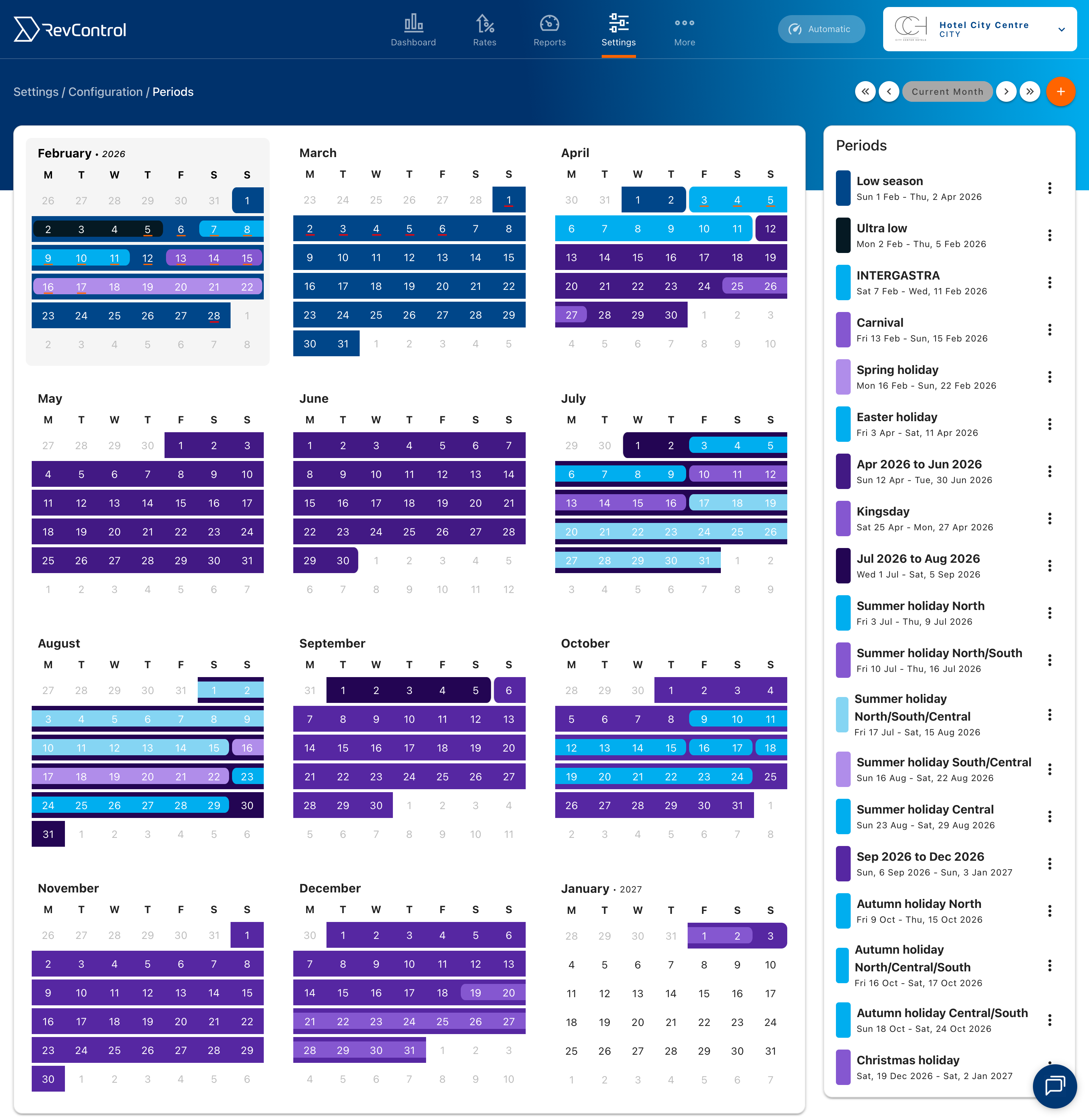
Once created, periods can be selected in:
- Minimum Rates
- Occupancy Supplements
- Minimum LOS
- Maximum Rates
Per setting, you decide whether the period overrides the default values or not.
Best practices
- Start simple and expand later
- Avoid creating more periods than necessary
- Use sub-periods instead of adjusting your entire structure
- Review your period setup at least once per year
Summary
- Periods determine when settings apply
- Default → main period → sub-period → event
- Start with a simple yearly structure
- Use sub-periods for exceptions
- Periods can always be adjusted later
A well-structured period setup keeps your RevControl configuration clear, flexible and easy to manage.